How to Create a Reusable Checklist for Your Shared Vacation Property
Anyone who has run a shared vacation property knows the same handful of routines come up over and over — strip the beds before checkout, drain the pipes before winter, run the fridge again in spring. Reusable Checklists in OurSharedPlace let you build each list once and run it every time, with state that persists between people so nothing slips.
This guide shows you how to create a reusable checklist from scratch, share it with guests without requiring an account, and run it from a tablet on the kitchen counter.
Step-by-step
- 1
Open the Checklists tab on your property
From inside your shared vacation home in OurSharedPlace, open the Checklists tab. Every new property comes with five starter lists — Upon Arrival, Departure, Cleaning, Winterize, and Reopen for the Season — so you may already have a head start.
The Reusable Checklists tab on a shared vacation property
- 2
Create a new checklist (or edit a starter)
Click 'New Checklist', give it a name (e.g. 'Hot Tub Drain & Refill'), and pick a visibility level — Admins, Members, Guests, or Public. The visibility level controls who can see the list inside the app; the share link is separate.
- 3
Add items in Edit mode
While in Edit mode, add each item, drop in optional notes (a paragraph of context, or a chemical reading), and drag them into the order you want. Each item can also link to a how-to article on your property blog — useful for 'drain the pipes', which deserves a video walkthrough.
- 4
Save to lock the structure
Click Save. The structure locks. From here on, the checklist behaves like a real list — items can be ticked off, but no one can accidentally delete or reorder them. You can always reopen for editing later.
- 5
Run the checklist on a tablet
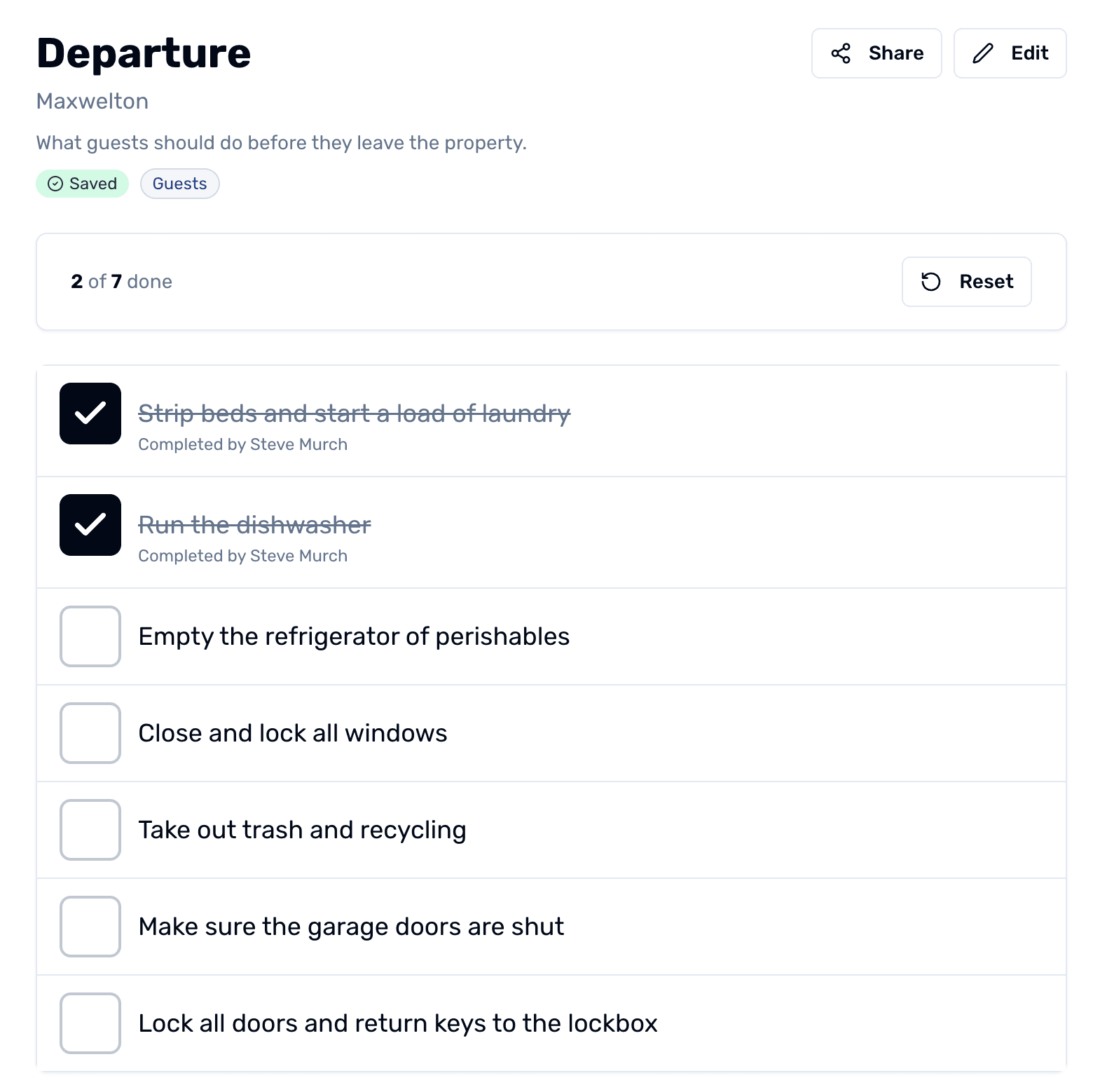
Anyone with access taps each item as they finish it. Their first name (member or guest) gets attached to the completed item, so the next person can see who did what. Tap the checkbox or the line of text — both work.
- 6
Reset for the next person
When everyone's done, hit Reset. The completion stats get logged to history, and the next person walking through gets a fresh list.
- 7
Share the list publicly (no account needed)
Click the Share button on a saved checklist to get a public, token-protected URL. Email it to a cleaner, paste it into a guest welcome message, or print a QR code on the kitchen wall. Guests get prompted for a first name on their first tap so attribution still works.
Tips
- Set departure and cleaning checklists to Public so they appear automatically on the embedded property dashboard surface.
- Use the link-to-article feature on each item to point cleaners or guests at video walkthroughs from your property blog.
- Keep one 'Maintenance' checklist as Admins-only for things you don't want guests touching.