How to Approve or Decline Booking Requests on Your Shared Vacation Home
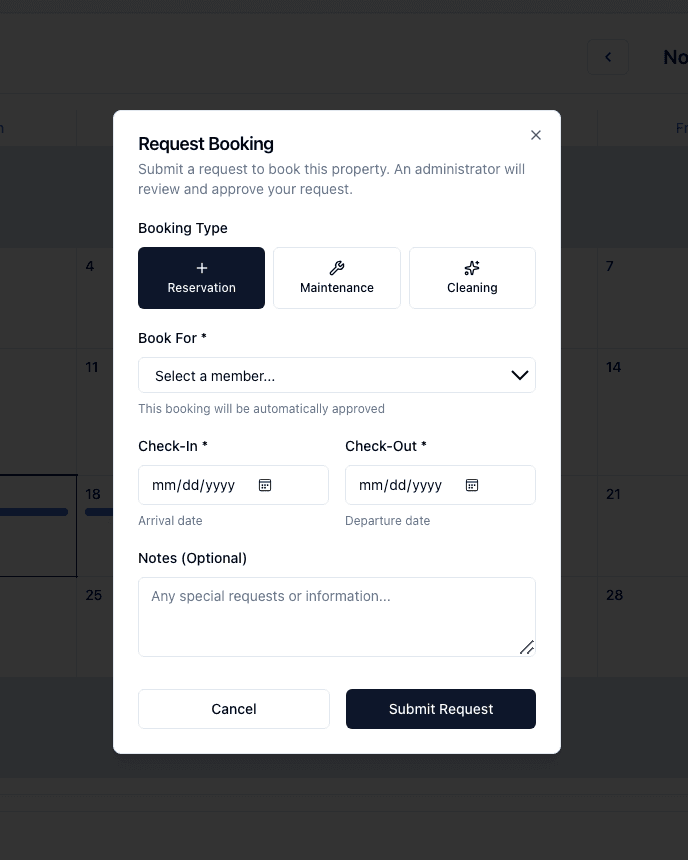
On a shared vacation property, booking requests don't auto-confirm. Members request dates, and administrators approve or decline. This keeps the calendar honest and lets the group apply its own fairness rules.
Here's exactly what an admin sees and how to act on it.
Step-by-step
- 1
Find pending requests in the Bookings panel
From your dashboard, the Pending Requests panel shows every booking that needs an admin decision. You can also see them as colored 'pending' bars on the calendar itself.
Booking request approval panel for a shared vacation home
- 2
Open a request to see the full picture
Click a request to see who asked, the dates, the requester's remaining quota, the number of guests, and any note they left. If multiple members requested overlapping dates, you'll see all of them side by side.
- 3
Approve, decline, or counter
Approve to confirm the booking on the calendar. Decline to reject it (with an optional reason that the member can see). You can also propose alternative dates by adding a comment, which the member gets by email.
- 4
Records persist — even rejections
Declined booking requests are never deleted. They stay in the system so the group can look back at year-end and see, for example, who was denied repeatedly and adjust next year's quotas accordingly.
Tips
- Designate at least two admins so requests aren't stuck waiting on one person.
- If you find yourself approving everything, consider just bumping the quota and letting requests auto-cap themselves.