How to Sync Your Vacation Home Calendar with Airbnb, VRBO & Google Calendar
If your shared vacation property is also occasionally listed on Airbnb or VRBO, you need everyone — co-owners and rental platforms — to see the same blocked dates. OurSharedPlace exports an iCal feed for each property that any calendar app can subscribe to.
This guide covers the basic export. For full two-way sync (so an Airbnb booking automatically blocks the OurSharedPlace calendar too), see our companion product MasterCalendar.io.
Step-by-step
- 1
Generate the iCal feed URL
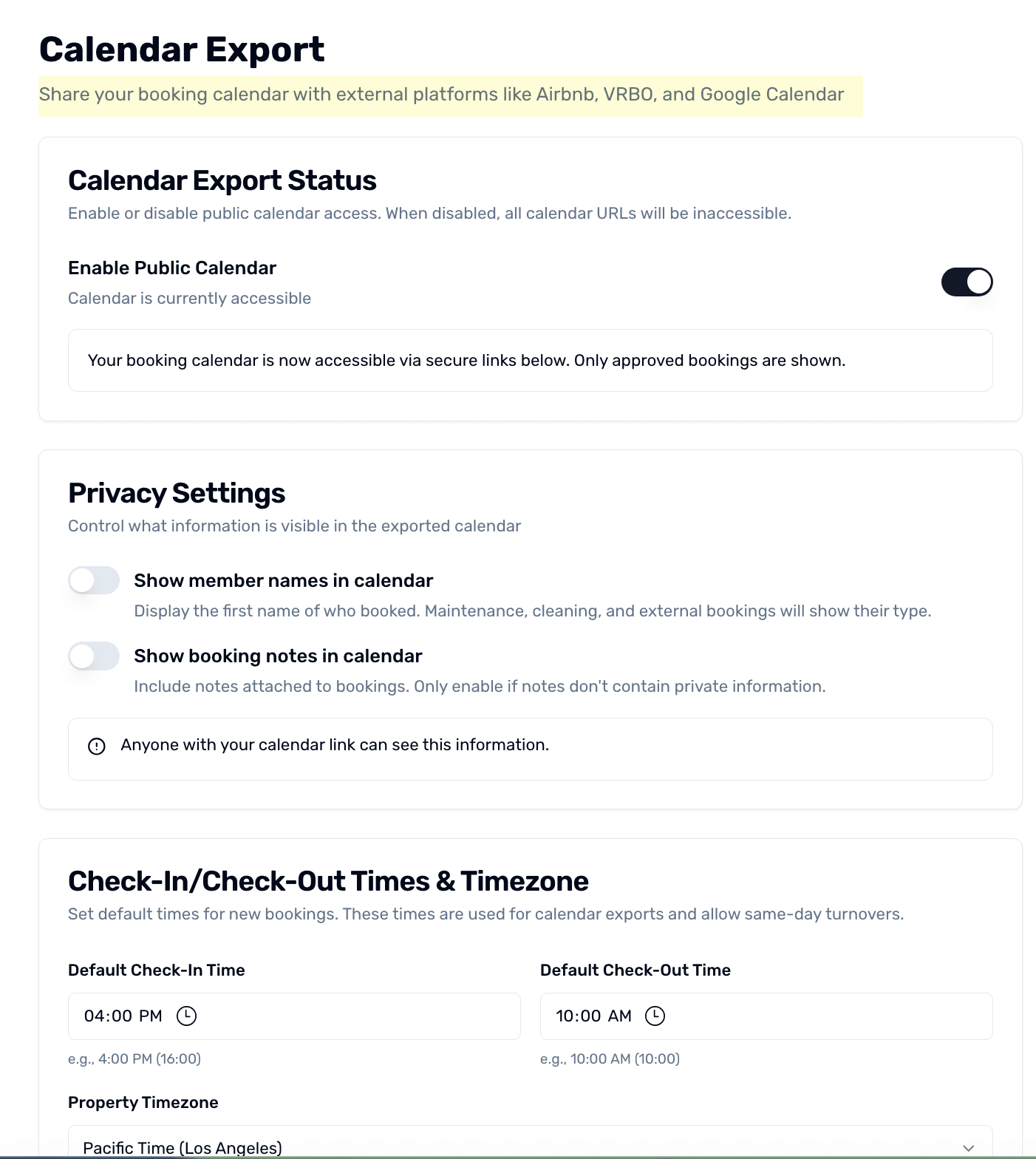
Open your property settings, find the Calendar Export section, and copy the iCal subscription URL. It's a long, token-protected URL — anyone with it can see your booked dates, so don't post it publicly.
iCal calendar export from a shared vacation home
- 2
Subscribe from Google Calendar
In Google Calendar, click the + next to 'Other calendars' and choose 'From URL'. Paste the iCal URL. The OurSharedPlace calendar appears alongside your personal calendars.
- 3
Subscribe from Apple Calendar
In Calendar on Mac, choose File > New Calendar Subscription and paste the URL. On iPhone, Settings > Calendar > Accounts > Add Account > Other > Add Subscribed Calendar.
- 4
Block your Airbnb or VRBO listing
On Airbnb, open Listings > Calendar > Availability > Sync Calendars > Import Calendar and paste the iCal URL. VRBO has a similar option under Calendar > Import Calendar. Their calendars now show your OurSharedPlace bookings as blocked.
- 5
Set up two-way sync (optional)
iCal subscription is one-way: changes in OurSharedPlace flow out, but Airbnb bookings don't flow back in automatically. For full bidirectional sync, link your shared vacation property to MasterCalendar.io — your OurSharedPlace login already works there.
Tips
- Calendar subscriptions refresh on each platform's own schedule (Airbnb is roughly hourly, Google can be slower) — don't rely on instant updates.
- Rotate the iCal token from property settings if the URL ever leaks.